Two tools. One overview.
See short-term and weekly usage for Codex and Claude together.
A LITTLE SPACE FOR YOUR AI USAGE
Give your Codex and Claude usage
a place on your desk.
A dedicated display for usage percentages and reset countdowns.
Less window switching. More focus.
Open source · Local Bridge · Encrypted Bluetooth sync
MADE FOR YOUR DESK
Usage comes from your computer and syncs to the display over Bluetooth.
Keep the desktop app running to receive updates.
See short-term and weekly usage for Codex and Claude together.
Usage percentages and reset countdowns appear together, with a clearer warning near the limit.
On the Waveshare AMOLED clock screen, two bars show usage. Percentages stand out near the limit.
STEP 1
Check its appearance and full model name. Devices with the same chip may require different firmware. Not sure which one? Compare devices
Loading supported devices…
Device photos from M5Stack, Waveshare documentation and Espressif documentation. Screens show manufacturer demos.
STEP 2
Connect the device with a USB data cable and close programs using its serial port. Click the button below, then select your device in the browser's device list.
Bluetooth pairing records on your computer are not erased. After installation, remove the old pairing from your computer and pair again.
Unchecking this option only skips the full-chip erase. A full image is still written, so device settings and bonding data may be overwritten.
Keep this page open, your computer awake, and the USB connection stable during installation.
ONE LAST CONNECTION
Once the firmware is installed, follow these three steps
to bring your usage to the desk.
macOS 14 or later · Apple Silicon only · Bluetooth required
Install CodexBar, sign in to your accounts, and check that usage appears correctly.
In CodexBar, choose Preferences → Advanced → Install CLI so the desktop app can read usage.
Download the macos-arm64 .dmg from the release page, then install and open QuotaFrame Bridge.
Download the desktop appAdd a Bluetooth device in the desktop app and follow the pairing prompts. Once usage percentages and reset countdowns appear on the display, you are ready.
Reflashed your device? Remove its old Bluetooth pairing from your computer first.Full desktop setup guide
Click or scroll over the Bridge icon in the macOS menu bar or Windows system tray to control your display.
Left-click to toggle the clock.
Scroll over the icon to browse usage.
The demo uses sample data; no device connection is required. Real controls require Bridge and firmware and affect all connected devices that support the corresponding feature.
CHOOSE YOUR SCREEN
The same usage data, with different screens and controls.
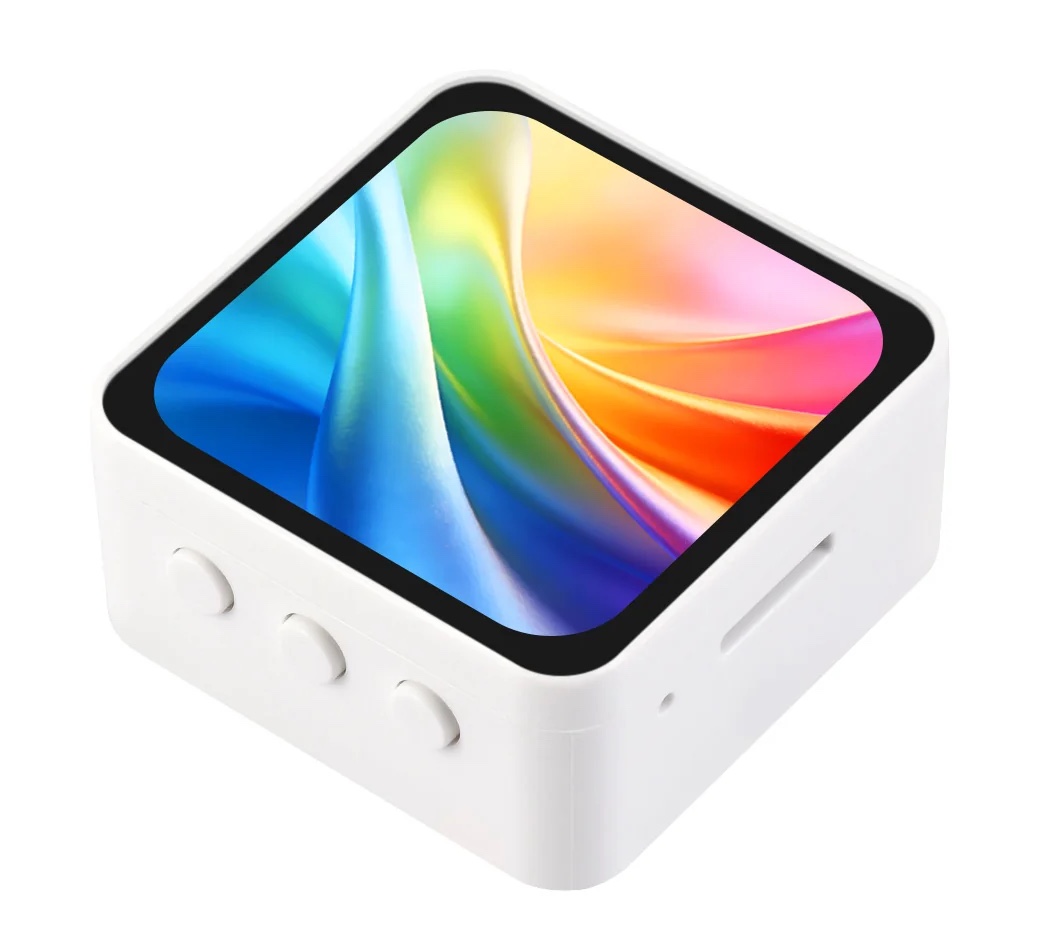 WaveshareAMOLED 2.16 WaveshareAMOLED 2.16 |
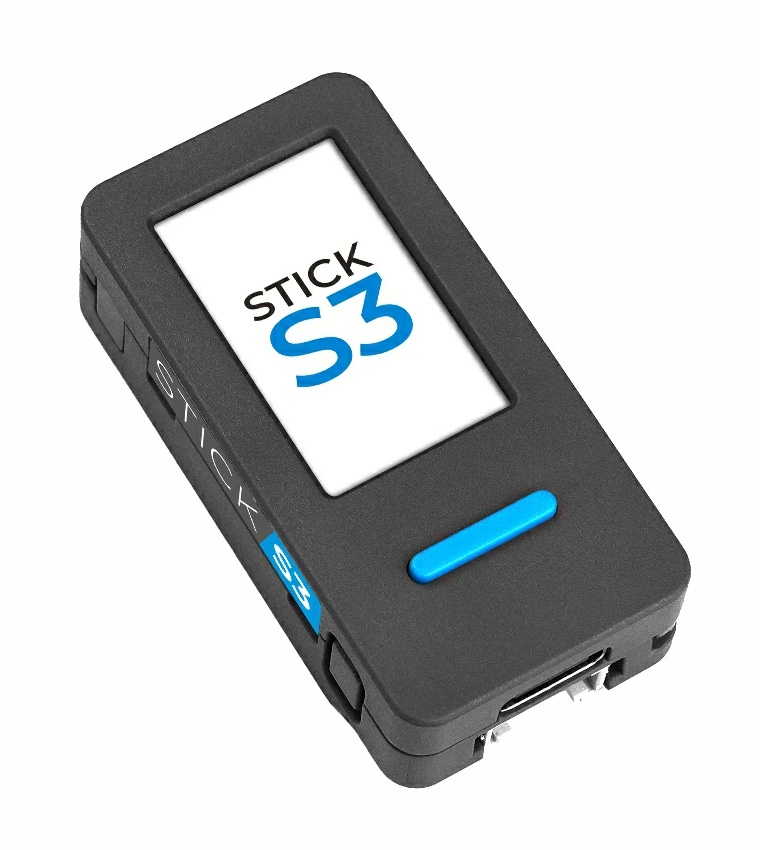 M5StackStickS3 M5StackStickS3 |
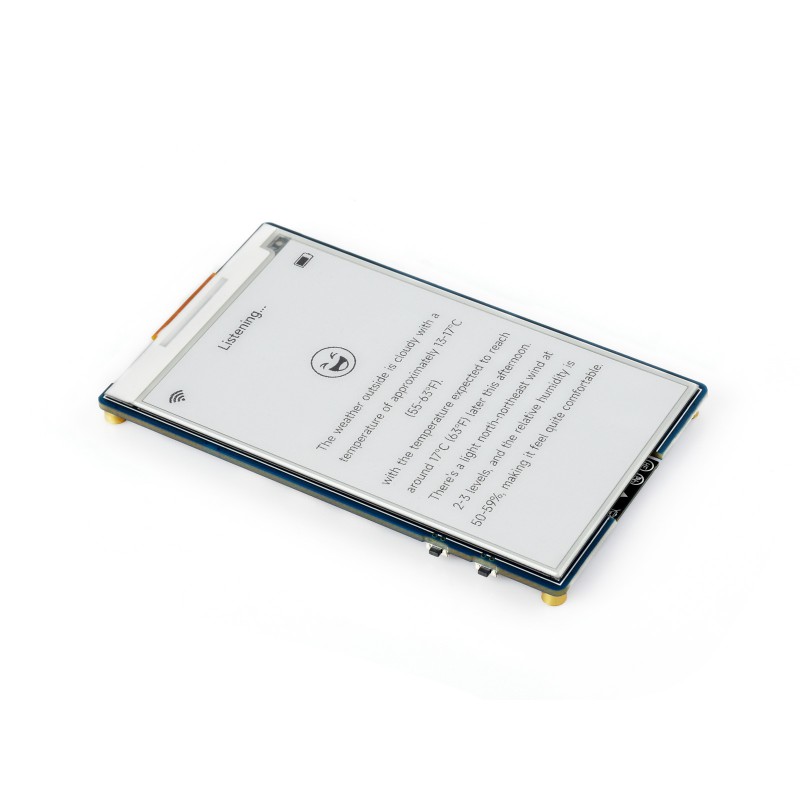 WaveshareePaper 3.97 WaveshareePaper 3.97 |
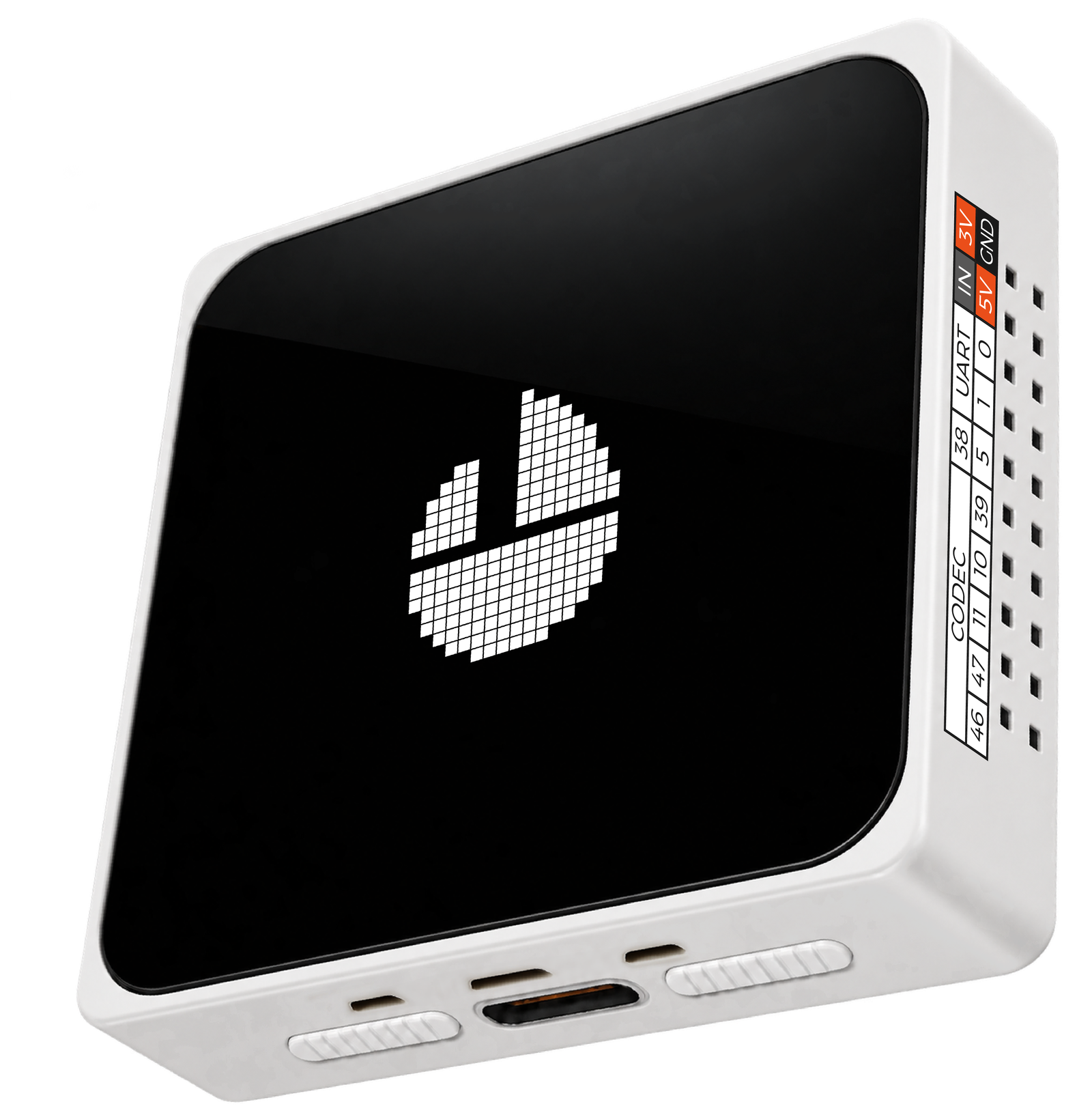 EspressifESP-Mosaico EspressifESP-Mosaico |
|
|---|---|---|---|---|
| Display | 480 × 480 rounded-square AMOLED | 135 × 240 LCD | 800 × 480 four-level grayscale e-paper | 480 × 480 AMOLED |
| Usage pages | Overview / Codex / Claude | Overview / Codex / Claude | Codex and Claude together, plus a trends page | Overview / Codex / Claude |
| Page controls | Touch tabs and swipe left or right | Front button | Three-way wheel | Touch tabs, swipe left or right, and AI button |
| Clock screensaver | Yes | No | Yes | YesResync time from the computer after power loss |
| Usage bars on screensaver | Yes | No | Yes | Yes |
| Auto-rotation | YesFour orientations | No | YesFour orientations | YesFour orientations |
| Shake / flip to wake | Yes | No | No | Yes |
| On-device settings | YesBrightness, clock timeout | No | YesRefresh interval, orientation | YesBrightness, clock timeout |
| Click tray icon to toggle clock | Yes | No | Yes | Yes |
| Temperature / humidity | No | No | YesClock page | No |
| Usage trends | No | No | YesSD card required | No |
All four support Codex / Claude usage, battery and charging status, keeping the last usage when disconnected, scrolling the tray icon to change pages, desktop OTA updates, and browser installation.
LOCAL BY DESIGN
QuotaFrame does not manage account sign-in. It sends a locally prepared usage summary to your paired display.
STAYS ON THIS COMPUTER
Bridge extracts only a usage summary. Accounts and credentials are not included in Bluetooth messages or routine logs.
SENT OVER ENCRYPTED BLUETOOTH
| SOURCE | USED | RESET |
|---|---|---|
| CODEX | 42% | 2H 14M |
| CLAUDE | 87% | 47M |
Usage sync sends only summaries and sync status. No account sign-in is needed on the display.
QuotaFrame does not run a usage cloud service. Fetching usage and checking for updates still require internet access.
Initial firmware installation requires a USB data connection. Usage syncs over Bluetooth; normal use still requires power or charging as appropriate for your device.
Keep the desktop app running with a working Bluetooth connection and access to usage from CodexBar or Win-CodexBar so the display can keep updating.
On Windows, use OTA in QuotaFrame Bridge. OTA is not yet available on macOS; connect over USB and use this page to install firmware for your model. Browser installation also supports initial setup and device recovery.
This page provides firmware only for the devices listed above. Even with the same chip, displays and pin assignments may differ. Do not mix firmware between models.